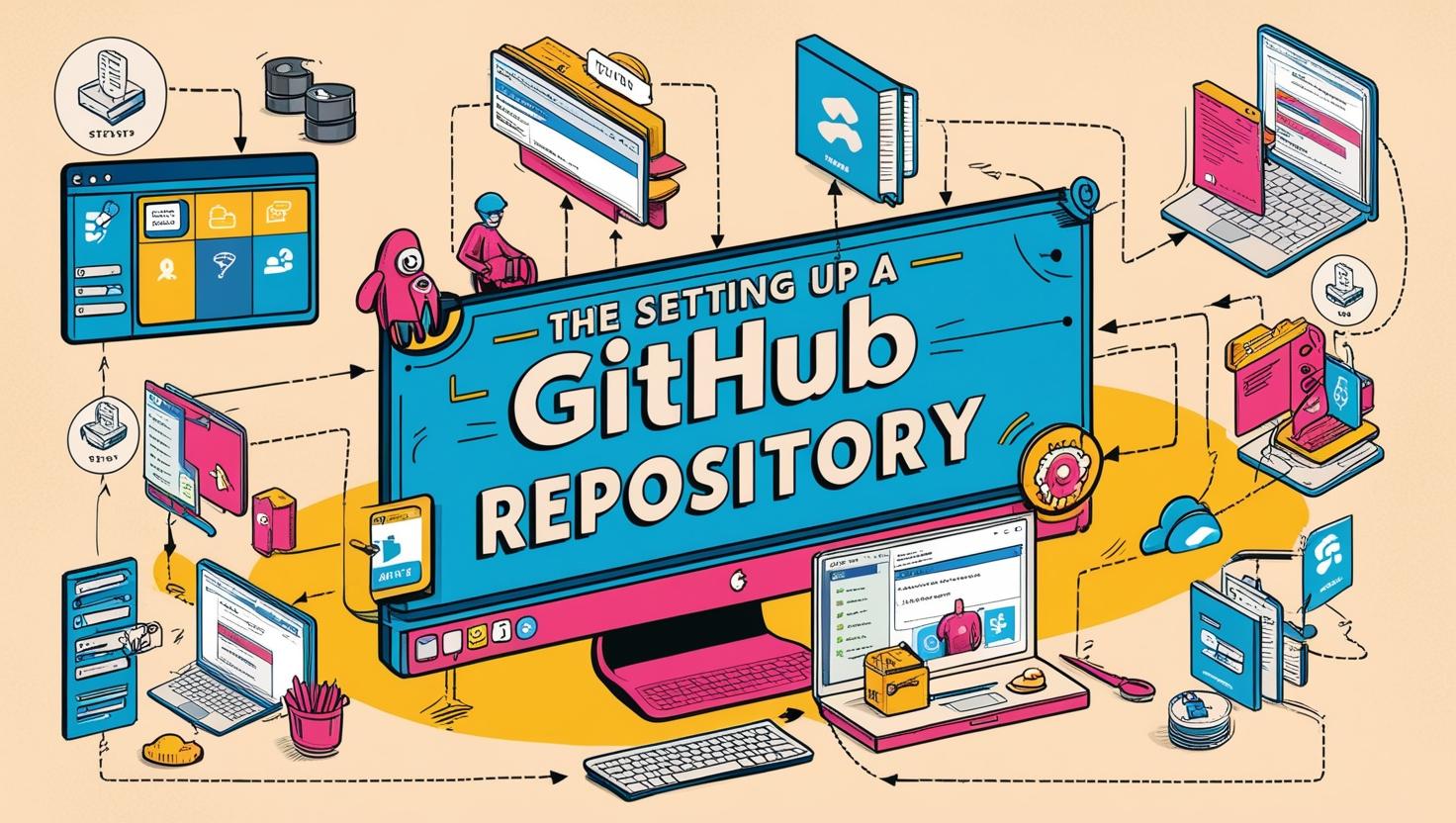
If you’re just getting into tech, learning how to create a GitHub repository is one of the first skills worth picking up. GitHub is where millions of developers store their code, track changes, and collaborate on projects. And the good news? Setting up your first repo is way easier than it sounds.
In this guide, I’ll walk you through the entire process step by step. No prior experience needed.
What Is GitHub (And Why Should You Care)?
GitHub is an online platform where you store your projects in something called a repository (or “repo” for short). Think of a repo as a smart folder that lives on the internet. It holds your files and keeps a complete history of every change you’ve ever made.
Here’s why that matters:
- Your projects are backed up in the cloud, so you never lose work
- You can undo mistakes by going back to any previous version
- Other people can see your work if you make it public (great for job hunting)
- You can collaborate with others on the same project without overwriting each other’s files
GitHub is used by software developers, but also by writers, designers, data analysts, and anyone who wants to organize digital work. If you’re exploring how to start in tech, creating a GitHub account is a great first step.
Step 1: Create a GitHub Account
Head over to github.com and click Sign Up in the top right corner.
You’ll need to provide:
- Username - Pick something professional. This becomes part of your profile URL (like github.com/yourname) and shows up on your public repos. Future employers will see this.
- Email address - Use a real one. GitHub will send you a verification email.
- Password - Make it strong. A mix of letters, numbers, and symbols.
After filling in your details, GitHub will ask you to solve a quick puzzle to verify you’re human, then send a confirmation code to your email.
Choose the Free plan when asked. It includes everything you need: unlimited public and private repos, collaboration features, and more.
Step 2: Create a New Repository
Once you’re logged in, here’s how to create your first repo:
- Click the ”+” icon in the top right corner of the page
- Select “New repository” from the dropdown
You’ll see the “Create a new repository” form. Here’s what each field means:
Repository Name
Pick something short and descriptive. Use lowercase letters and hyphens instead of spaces. Examples:
my-first-projectpersonal-websitelearning-python
Description (Optional)
A one-line summary of what this project is about. For example: “My first GitHub repo for learning.” This shows up on your profile and helps others understand your project.
Public vs Private
- Public means anyone on the internet can see your code. Great for portfolios, open source, or showing off your work.
- Private means only you (and people you invite) can access it. Good for personal projects or work you’re not ready to share.
You can always change this later.
Initialize with a README
Check this box. A README file is the “homepage” of your repo. It’s the first thing people see when they visit your project, and it’s where you describe what the project does, how to use it, and anything else that’s important.
.gitignore and License
You can skip these for now. They become important later when you’re working on real projects, but for your first repo they’re not necessary.
Once everything looks good, click “Create repository” at the bottom.
That’s it. You just created your first GitHub repository.
Step 3: Add Files to Your Repository
Now that your repo exists, you’ll want to put some files in it. There are two ways to do this.
Option A: Add files directly on GitHub (easiest)
This is the quickest way if you just want to create or upload a file:
- Open your repository page on GitHub
- Click “Add file” near the top
- Choose “Create new file” or “Upload files”
- If creating a new file, give it a name (like
hello.txt) and type some content - Scroll down and click “Commit changes”
A “commit” is basically saving your changes with a note about what you did. Think of it like a save point in a video game.
Option B: Clone and work locally (more powerful)
If you want to work on your computer and then push changes to GitHub, you’ll need to clone your repo. This is how most developers work.
First, install Git on your computer. Then open your terminal (or Git Bash on Windows) and run:
git clone https://github.com/your-username/your-repo-name.gitReplace your-username and your-repo-name with your actual GitHub username and repo name. You can find the exact URL by clicking the green “Code” button on your repo page.
This downloads your entire repo to your computer. Now you can add, edit, or delete files using any text editor you like.
Step 4: Make Changes and Push Them to GitHub
After you’ve edited files on your computer, you need to push those changes back to GitHub. Here’s the process:
git add .
git commit -m "Added my first files"
git push origin main
Let’s break that down:
git add .tells Git to include all your changed files in the next savegit commit -m "message"creates a save point with a description of what you changedgit push origin mainuploads your changes to GitHub
After running these commands, refresh your repo page on GitHub. You’ll see your new files right there.
This add-commit-push cycle is the core of how Git works. Once it clicks, you’ll use it constantly.
Step 5: Manage Your Repository
Now that you have a working repo with files in it, here are some useful GitHub features to explore:
README.md
Edit your README to describe your project properly. Use Markdown formatting to add headings, lists, links, and code blocks. A good README makes your project look professional.
Issues
Think of these as a to-do list for your project. You can create issues to track bugs, plan features, or write notes to yourself about things you want to work on.
Branches
Branches let you work on new features without messing up your main code. When you’re happy with the changes, you merge them back. This is how teams work on the same project without stepping on each other’s toes.
Pull Requests
If you’re working with others (or even just practicing), pull requests are how you propose changes. You create a branch, make your changes, and then open a pull request to have someone review your work before it gets merged.
GitHub Profile
Your GitHub profile page shows all your public repos and your contribution activity (the green squares). A consistent history of contributions looks great to potential employers or collaborators.
Common Questions About GitHub Repositories
Can I store non-code files on GitHub?
Yes. You can store images, PDFs, documents, notes, design files, and more. GitHub is especially good for text-based files, but it handles binary files too.
What if I break something?
That’s the beauty of Git. Every commit is a snapshot of your project. You can always go back to a previous version. Nothing is permanently lost as long as you’ve been committing regularly.
Should my repos be public or private?
If you’re learning or building a portfolio, go public. It shows the world (and potential employers) that you’re actively building things. For personal or sensitive projects, use private repos.
Is GitHub free?
Yes. The free plan is generous and includes unlimited public and private repositories, collaboration features, and GitHub Actions for automation. Most individuals never need to upgrade.
Is GitHub only for programmers?
Not at all. Writers use it for version-controlled documents. Designers store assets and design systems. Project managers track work with Issues and Project boards. If you work with files that change over time, GitHub can help.
What to Do After Your First Repository
You’ve got your first repo. Here’s what to do next to keep learning:
- Create a second repo for a different project to practice the workflow
- Try editing files locally and pushing changes if you haven’t already
- Explore other people’s repos to see how they structure their projects
- Star repos you find interesting (it’s like bookmarking)
- Learn basic Markdown so you can write better README files
If you’re looking for more beginner-friendly skills to learn, check out our guide on essential tech skills for 2025 or explore AI tools that can help you learn faster.
Final Thoughts
Creating a GitHub repository is a small step that opens a lot of doors. It’s how you start building a portfolio, contributing to open source, and working like a professional developer.
Don’t overthink it. Create a repo, add some files, and push your first commit. The more you do it, the more natural it becomes. Your future self will be glad you started today.